A buyer should choose a DisplayPort-to-HDMI adapter only after identifying which device is the source and which is the display. A passive adapter can be appropriate when a DisplayPort source supports VESA DisplayPort Dual-Mode, commonly marked DP++, and the requested HDMI mode is within the adapter and system limits. An active adapter performs protocol conversion and is required when the source cannot provide the dual-mode signal or when the design calls for a conversion capability that a passive route cannot deliver. The reverse path—an HDMI source driving a DisplayPort display—is a different conversion and normally requires an active HDMI-to-DisplayPort product. Connector fit alone does not make either route reversible.
That direct answer prevents a common sourcing error: treating “DP to HDMI” as the name of a connector pair rather than the description of a signal route. The two plugs may look correct in a photograph while the electronics are designed for the opposite direction. Before comparing price, housing, cable length, or packaging, establish the route on paper:
source device and output port → adapter or converter → cable, if separate → display input
If any part of that line is unknown, a supplier cannot responsibly confirm the finished assembly.
Start with roles, not connector genders
A video link has an upstream source and a downstream sink. A desktop graphics card, notebook docking station, media player, or AV processor may be the source. A monitor, projector, television, or capture interface may be the sink, although capture devices require their own compatibility review. “Male” and “female” describe connector construction; they do not identify which device generates the signal.
This distinction matters because DisplayPort and HDMI are different signaling systems. A mechanical adapter that places one connector on each end does not automatically translate between them. In the common DisplayPort-source-to-HDMI-display route, there are two broad implementation methods:
- A passive dual-mode adapter relies on the DisplayPort source to produce a signal compatible with the HDMI/DVI family. The adapter provides the specified connector and electrical mapping for that supported route.
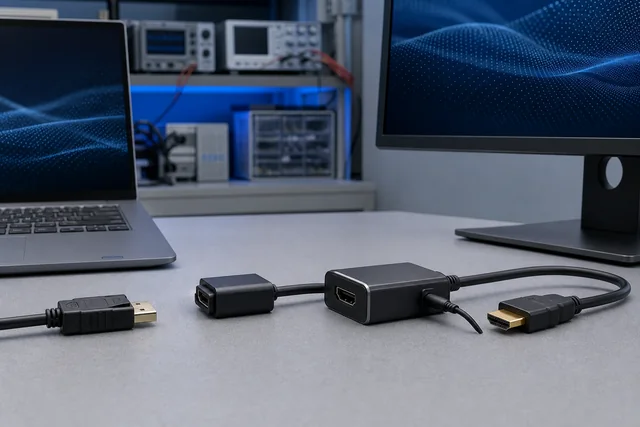
- An active converter receives a DisplayPort signal and uses conversion electronics to generate an HDMI output. Its capability is determined by its converter design, firmware, power budget, and stated input/output limits.
The word “active” should therefore mean that conversion or signal-processing electronics are present. It should not be used as a synonym for “better,” “higher quality,” or “always higher resolution.” A well-matched passive route may be the simplest valid solution. An active converter may solve a protocol requirement yet still have a lower maximum mode than another product. The data sheet and the endpoints decide, not the adjective.
What DP++ changes in the passive route
VESA describes DisplayPort Dual-Mode as a source capability that enables a DisplayPort output to provide a signal suitable for an HDMI or DVI display through a dual-mode adapter. DP++ is therefore a capability of the source path. The passive adapter does not make an unsupported DisplayPort source become dual-mode.
For procurement, the relevant question is not “Does the connector have the DisplayPort shape?” It is “Does this exact source port support DisplayPort Dual-Mode, and does it support the requested mode through that implementation?” The source documentation, equipment manual, port marking, or manufacturer support record should answer that question. A DP++ logo can be useful evidence, but absence of a visible logo is not a reason to guess; check the equipment documentation.
Dual-mode support also should not be interpreted as unlimited HDMI capability. The achievable output remains bounded by the source implementation, adapter rating, any downstream HDMI cable, display input, and the selected video format. A passive adapter advertised only as “4K” has not yet told the buyer whether that means 24, 30, 60, or another refresh rate, which color format is supported, whether HDR metadata is handled, or which content-protection version works in the full path.
A route-by-route decision matrix
| Source and destination | Candidate architecture | What must be verified | Procurement conclusion |
|---|---|---|---|
| DisplayPort source → HDMI display | Passive dual-mode adapter | Source supports DP++; requested video/audio mode is within source, adapter, cable, and display limits | Passive may be suitable; DP++ and mode evidence are prerequisites |
| DisplayPort source → HDMI display | Active DP-to-HDMI converter | Converter input/output limits, required power, target mode, audio, content protection, and endpoint support | Use when protocol conversion is required or when the specified design exceeds the passive route's documented capability |
| HDMI source → DisplayPort display | Active HDMI-to-DisplayPort converter | Explicit HDMI-input/DP-output direction, power method, supported DP output mode, display compatibility | Do not substitute a DP-to-HDMI adapter; purchase the reverse-direction converter |
| Mini DisplayPort source → HDMI display | Passive or active, using the same signal logic | Mini DisplayPort source capability, DP++ support where passive, target mode, connector implementation | Smaller connector does not change the active/passive decision |
| DisplayPort source → DisplayPort display | Native DP cable or a defined active/optical DP link | Link-rate requirement, cable certification/rating, length, direction if active, source and display support | This is not a DP-to-HDMI conversion problem |
| USB-C source → HDMI display | USB-C video adapter, dock, or converter | Host supports DisplayPort Alt Mode, USB4 display transport, or another documented video mode; adapter limits | USB-C shape alone proves nothing; use the USB-C compatibility guide |
This matrix is a starting point, not a compatibility guarantee. For example, two products described as active DP-to-HDMI converters can use different conversion components and expose different limits for refresh rate, HDR, audio, HDCP, or multi-monitor operation. The exact part specification remains controlling.
Directionality: three products that buyers often confuse
Direction should be assessed by product architecture, not by a general rule applied to every cable with a DisplayPort connector.
A conventional passive DisplayPort cable
A standard passive DP-to-DP cable is not normally sold with “Source” and “Display” ends. The main video link operates from the source toward the sink while DisplayPort also includes management communication in the link. For installation purposes, an ordinary conforming passive DP cable is generally not treated like a one-way AOC. This statement does not cover every active cable, detachable adapter, KVM path, or optical assembly.
A protocol-conversion adapter
A DP-to-HDMI converter is designed around a defined input and output. Reversing it changes which protocol reaches the converter input, so it should be assumed one-way unless the manufacturer explicitly documents a bidirectional architecture. Product titles and packaging should state “DisplayPort source to HDMI display,” not merely show two connector names separated by a hyphen.
An active or optical cable assembly
Active electronics may be located in one or both connector heads. Optical and other active assemblies frequently mark one end for the source and the other for the display. Reversing those ends can produce no image even though both connectors fit. Direction labels, installation drawings, bend limits, auxiliary power requirements, and the exact supported mode belong in the technical approval package.
The safe sourcing rule is simple: if a product contains conversion, amplification, retiming, or optical electronics, obtain an explicit direction statement. Do not infer direction from plug gender, connector size, or a marketplace photograph.
“4K” is not a complete adapter specification
Video-mode shorthand creates false equivalence between products. A credible requirement records at least:
- pixel dimensions, such as 3840 × 2160 rather than only “4K”;
- refresh rate, such as 30 Hz or 60 Hz;
- required color depth and color format where they matter to the application;
- HDR requirement and the formats the source and display are expected to use;
- whether compression, including Display Stream Compression, is allowed in the source path;
- audio format or channel requirement;
- content-protection requirement for protected media;
- single-display or multi-display topology;
- total route length and whether a separate HDMI cable follows the adapter.
An adapter cannot add a video mode that the source does not generate or the display does not accept. It also cannot make every downstream HDMI cable suitable for the resulting signal. The complete chain must support the selected operating point.
Version labels require equal care. VESA's current guidance makes clear that a product implementing a recent DisplayPort specification does not necessarily implement the highest optional link rate associated with that generation. Buyers should ask for the supported link rate or certified performance class where applicable, not assume that “DisplayPort 2.1” means UHBR20 or 80 Gbit/s. On the HDMI side, use the product's documented output capability rather than translating a connector claim into an unverified cable or system certification.
EDID, HDCP, and audio are part of compatibility
When a source connects to a display, capability information is exchanged so that the source can select an output the display reports it can accept. An adapter or converter sits inside that exchange. Poor handling, a limited converter, a display mode the source cannot generate, or an unexpected intermediary may lead to a blank screen, intermittent image, incorrect color, or a fallback to a lower mode.
Protected content adds another end-to-end dependency. HDCP defines roles for transmitters, receivers, and repeaters. A converter in the path does not make an unsupported source or display compliant, and a passive cable should not be marketed as an “HDCP 2.2 cable.” Instead, identify the protected-content use case and verify the source, converter, any repeater or switch, and display as a complete path.
Audio should also be specified rather than assumed. DisplayPort can transport audio, but the source must output it, the converter must support the required handling, and the HDMI display or receiver must accept the requested format. If the assembly includes an audio extractor, analog output, or separate USB power lead, it is no longer equivalent to a basic passive adapter and needs its own signal-flow drawing.
Multi-monitor and dock deployments need a topology review
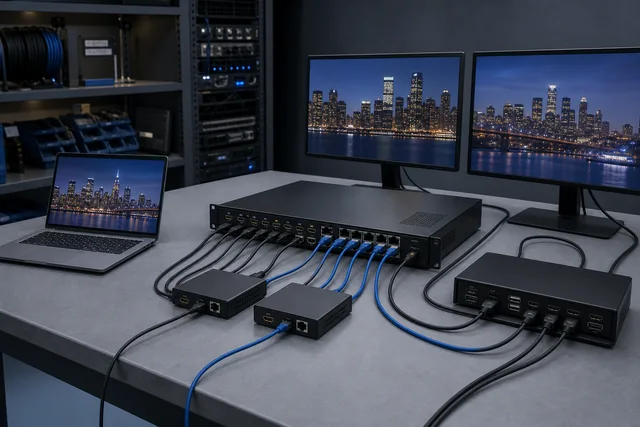
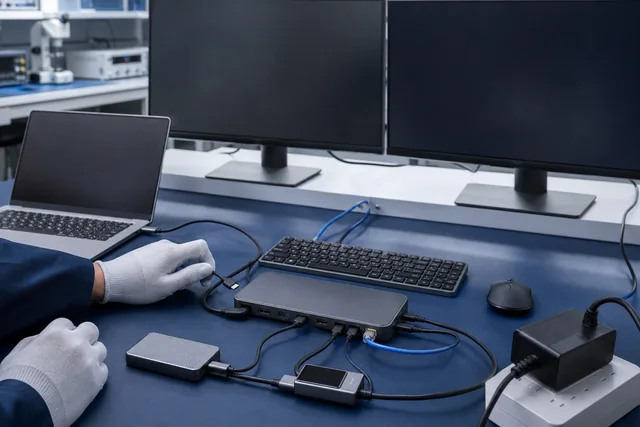
A single adapter connected directly to a graphics output is not the same as three adapters connected through a dock or DisplayPort Multi-Stream Transport device. The source GPU, operating system, dock, MST hub, available link bandwidth, adapter type, and displays all affect the result. A converter that operates correctly on one direct port may not prove a multi-display design.
For a multi-monitor project, record every branch:
- host model, graphics subsystem, and operating system;
- dock or hub model and firmware, if present;
- each source-side port and whether it is native DisplayPort, Mini DisplayPort, USB-C, or Thunderbolt;
- adapter direction and active/passive construction;
- every display's native resolution, refresh target, and input;
- whether the displays mirror or extend the desktop;
- simultaneous USB, Ethernet, or storage loads if a shared dock is involved.
This is a system qualification exercise, not a reason to attach a universal “MST compatible” statement to an untested adapter. Sample approval should reproduce the intended topology.
A practical buyer decision flow
Gate 1: Mark the source and display
Write down the exact equipment models and ports. If the source is HDMI and the monitor is DisplayPort, stop searching for a passive “DP-to-HDMI” lead. The required direction is HDMI input to DisplayPort output and needs a purpose-built active converter.
Gate 2: Confirm dual-mode support for a passive proposal
For DisplayPort source to HDMI display, verify DP++ in the source documentation. If it is absent, unknown, or inconsistent across the installed equipment fleet, an active conversion design may reduce that particular dependency, subject to its own compatibility limits.
Gate 3: Define the operating point
Replace “supports 4K” with a complete resolution, refresh rate, color, HDR, audio, and content-protection requirement. Include route length and downstream cable details. If the supplier cannot map the requirement to a documented limit, the proposal is not ready for approval.
Gate 4: Check power and physical deployment
Some active converters draw power from the DisplayPort connector; others include or require auxiliary USB power. Confirm startup behavior, low-power recovery, hot-plug use, connector clearance, strain relief, and temperature requirements. A desk deployment and a sealed equipment enclosure do not present the same risk.
Gate 5: Test the real topology
Approve a sample using the intended source models, displays, content, cables, docks, and operating systems. Test cold boot, wake from sleep, reconnect, protected playback where applicable, and the maximum required mode. Record the sample revision and test conditions rather than retaining only a photograph of a working screen.
Failure patterns and what they actually suggest
The connectors fit but the display reports no signal. First verify direction. Then verify DP++ if the proposal is passive, auxiliary power if active, input selection on the display, and the supported operating mode.
1080p works but the required 4K mode does not. This usually indicates that at least one link in the chain cannot sustain or negotiate the requested mode. Check refresh rate, adapter ceiling, source output, downstream HDMI cable, display input capability, and any dock or switch. It does not prove that all active adapters will work.
The desktop works but protected video fails. Review HDCP capability across the entire path. Avoid replacing random cables until the source, converter, intermediaries, and display requirements are known.
One monitor works, but a multi-monitor build does not. Calculate the full topology and shared bandwidth. Confirm GPU, MST or dock behavior, operating-system support, and each converter. A single-screen sample result cannot be generalized.
Video works but audio does not. Check source audio output selection, converter audio support, display capability, and the requested audio format. Connector compatibility alone does not certify audio handling.
The installation works after reconnecting but fails after sleep. Record firmware, operating system, hot-plug, and wake behavior during sample validation. Intermittent negotiation problems require a reproducible system test, not an unsupported “fully compatible” label.
RFQ information that prevents the wrong sample
Provide the following information with a B2B inquiry:
- source equipment make/model and exact output port;
- whether the source documentation confirms DP++;
- display make/model and exact HDMI or DisplayPort input;
- conversion direction written in words;
- required resolution, refresh rate, color depth/format, HDR, and audio;
- protected-content or HDCP requirement, if applicable;
- direct connection, dock, KVM, matrix, MST hub, capture device, or other intermediary;
- separate cable types and total route length;
- single-display or multi-display layout;
- active/passive preference only if it is a real design constraint;
- auxiliary power constraints;
- operating systems and wake/hot-plug expectations;
- quantity, target market, enclosure, cable length, labeling, and packing requirements;
- exact test report, certification, or compliance evidence required by the project.
These details allow the proposed architecture to be reviewed. They do not guarantee feasibility before the exact model and sample are confirmed.
Questions procurement teams ask after the first failed adapter
Can an active DP-to-HDMI adapter be used in reverse?
Assume no. An active converter has a defined protocol input and output. Use it only in the direction stated by its manufacturer. HDMI-source-to-DisplayPort-display conversion requires a product explicitly designed for that route.
Does a passive adapter reduce image quality?
“Passive” does not by itself define image quality. If the source supports the dual-mode route and every component supports the requested digital video mode, the adapter can be an appropriate solution. Problems arise from mismatched capability, signal integrity, or negotiation—not from a universal quality penalty assigned to all passive products.
Is an active adapter always the safer purchase?
No. It introduces conversion electronics, product-specific power and firmware behavior, and a defined performance ceiling. Choose it when the architecture requires conversion or its documented capabilities match the project, not simply because it costs more.
Can a DP++ source drive any HDMI display?
No universal statement is safe. DP++ establishes a dual-mode route; the requested resolution, refresh rate, audio, content protection, adapter capability, downstream cable, and display input still have to match.
Does “8K adapter” contain enough information for approval?
No. Record the pixel dimensions, refresh rate, color depth and format, compression assumptions, HDR, content protection, source, display, and cable route. A headline resolution is not an engineering specification.
Request a direction and compatibility review
For a project-specific review, send the source model and port, display model and input, signal direction, required video/audio mode, route length, quantity, and any dock or multi-monitor topology. Use the DisplayPort connectivity category for a model-family starting point; if the source is HDMI and the display is DisplayPort, review the reverse-direction requirements before using the HDMI adapter and converter route. CoreCavo can use those details in a project-specific RFQ. Final feasibility, performance, documents, MOQ, and OEM options must be confirmed for the exact quoted model and order; this guide is not a product certification or system guarantee.
Official and Primary Sources
- Video Electronics Standards Association (VESA), DisplayPort FAQ. Used for DisplayPort-over-USB-C boundaries, adapters, and the warning that specification version alone does not guarantee the highest link rate.
- VESA, VESA Introduces Updated Dual-Mode Standard for Higher Resolution Interoperability with HDMI Displays. Used for the DP++ dual-mode source and passive-adapter explanation.
- VESA, Cable and Adaptor Certification Program. Used for the existence and scope of VESA cable/adapter certification.
- VESA, DisplayPort Product Database: Cables and Adaptors. Used as the official place to verify listed certified products rather than inferring certification from marketing text.
- VESA, DisplayPort Updates and Extensions. Used for DP54 and DP80 certification-class context.
- Dell Technologies, HDMI to DisplayPort Conversion Information. Primary manufacturer support source for the reverse-direction active-conversion requirement.
- StarTech.com, DisplayPort Converter: DP Multi-Mode. Primary manufacturer technical source illustrating passive DP++ dependency and active-converter use cases.
- Digital Content Protection LLC, HDCP 2.2 Compliance Test Specification. Used only for HDCP source/sink/repeater role context; it does not certify any product discussed in this guide.